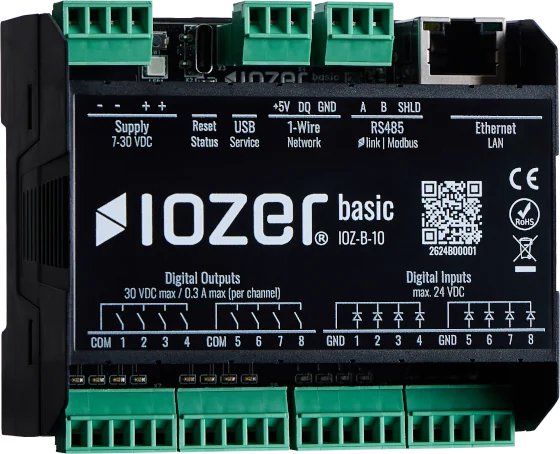
User interface
The IOZER basic user interface is opened in a web browser and is used for commissioning, configuration, diagnostics, and programming. It is designed for local operation: after opening the device's IP address, the dashboard, programming, settings, updates, and diagnostic functions are available directly in the browser.
Interface layout
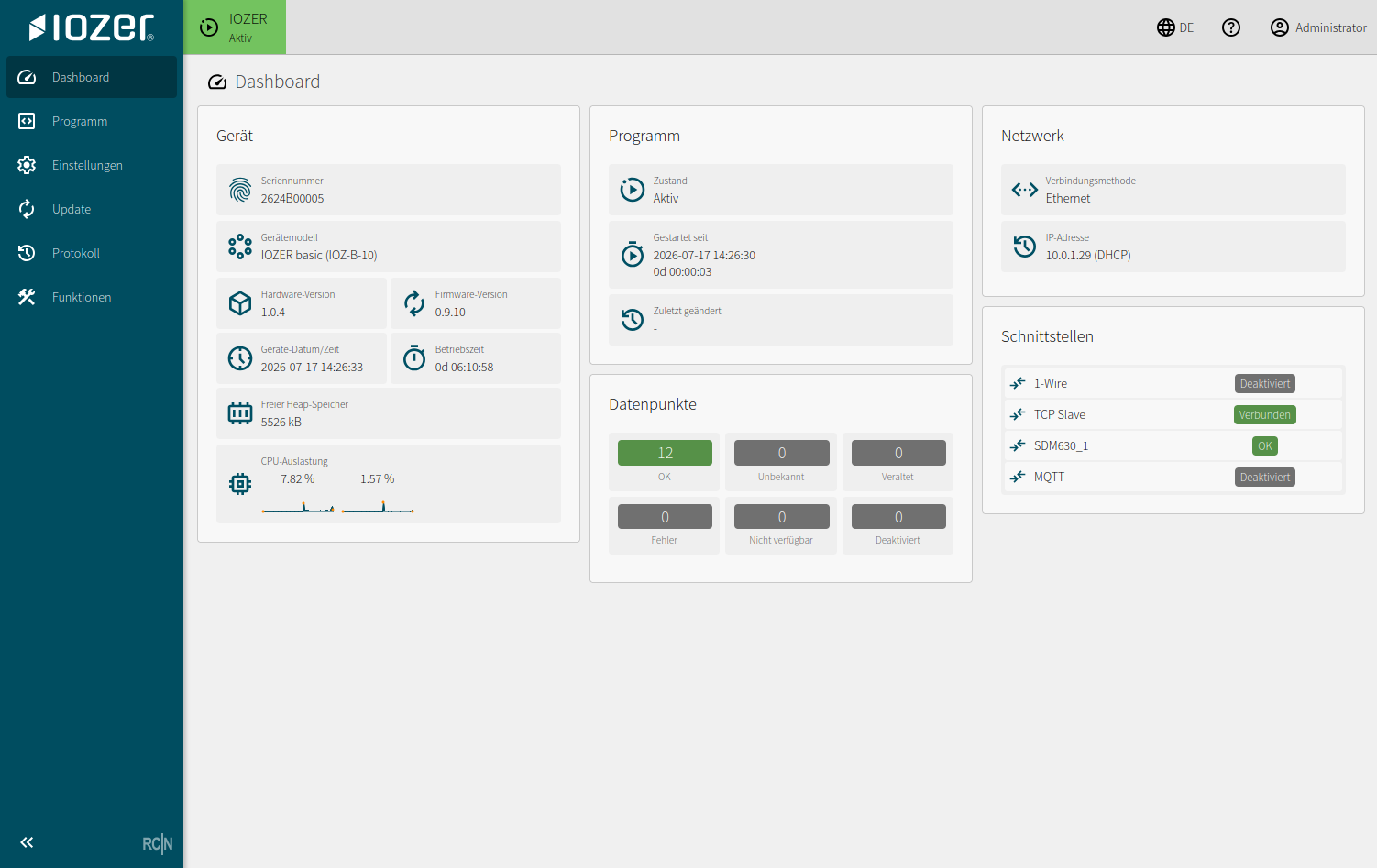
The interface is divided into three areas:
- Left sidebar: main navigation for Dashboard, Program, Datapoints, I/O & Interfaces, Settings, Update, Log, and Functions.
- Header: device, program, and I/O status, language, help, and the signed-in user.
- Workspace: content of the selected menu item, such as the dashboard, settings, or programming view.
The current device or program state is shown in the upper-left status area. An active program is shown in green. States such as setup mode, stopped programs, or faults are also indicated by the RGB status LED on the device.
Menu items
| Menu item | Purpose |
|---|---|
| Dashboard | Overview of the device, program, network, interfaces, and datapoints. This is the central starting point for commissioning and diagnostics. |
| Program | Creation and editing of local automation. Events, Blockly logic, and JavaScript programs are managed here. |
| Datapoints | Central overview of values, sources, and targets; import, export, and Home Assistant AutoDiscovery. |
| I/O & Interfaces | Configuration of digital inputs and outputs, 1-Wire, Modbus, and MQTT. |
| Settings | Device name, autostart, time zone, network, and user accounts. |
| Update | Management of firmware updates. |
| Log | Display of system and event messages for troubleshooting, commissioning, and service. |
| Functions | Device functions for service and maintenance, such as restarting the device or creating a backup. |
Additional menu items may be visible depending on the firmware version, license, or development status.
Dashboard
The dashboard summarizes the most important operating data. Typical information includes the serial number, device model, hardware and firmware version, system time, uptime, memory status, and CPU load.
It also shows the state of the active program, datapoint status, and key network and interface information. For integrators, this page is especially useful for quickly checking whether the device is reachable, the program is running, and connected interfaces such as 1-Wire, Modbus, or MQTT are operating correctly.
Program
The Program section is used to create and manage local IOZER basic logic. Programming is event-based: an event triggers an action that can be defined using Blockly or JavaScript.
Typical tasks in this section include:
- Creating events for inputs, datapoints, schedules, or system states
- Creating and testing Blockly logic
- Editing JavaScript code
- Saving, applying, and running programs
- Checking program status
The underlying concepts are described under Programming.
Datapoints
The Datapoints main menu contains the central value overview and editing dialogs. The ⋮ menu provides import, export, and Home Assistant publication. See Datapoints.
I/O and interfaces
I/O & Interfaces contains configuration for digital inputs and outputs, 1-Wire, Modbus, and MQTT. Activate I/O and Deactivate I/O start or stop their shared operation independently of the program. Status indicators distinguish Disabled, Stopped, Active/OK, and Error.
Stopping the program leaves I/O and interfaces running. Conversely, a program can continue while I/O is stopped, but receives no ongoing hardware or interface updates. When starting a program with inactive I/O, the dialog offers Cancel, Ignore (start the program without I/O), and Activate I/O (start I/O and then the program).
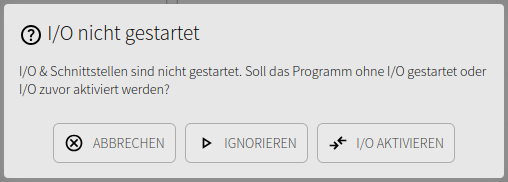
In setup mode, I/O is inactive after startup and outputs are switched off. Activate I/O manually for functional testing after completing configuration. In normal operating mode, Start I/O & interfaces automatically controls startup independently of program autostart. See General.
When I/O is stopped, outputs take their configured Stop state. Keep state also preserves ongoing flashing. See Digital outputs.
Settings
Settings contains the General, Network, and Users tabs. Configure the device name, autostart, time base, network, and credentials here.
The shared save and apply workflow is described under Settings.
Update
The Update menu item is used to update the firmware. Before starting an update, ensure that the power supply is stable and that the current settings have been documented or backed up.
Do not disconnect power during the update. Once the update is complete, the device normally restarts and the new firmware version is shown on the dashboard.
Log
The log displays system messages, events, and runtime notices. It helps with troubleshooting when a program does not start as expected, an interface is not connected, or an external service cannot be reached.
For service and commissioning, the log is the first place to check when the dashboard or status LED indicates a fault.
Functions
The Functions section contains device-specific tools and actions for commissioning, diagnostics, or maintenance.
Available functions may vary depending on the firmware version, for example restart or backup actions. Only perform critical actions when their effect on the system is understood.