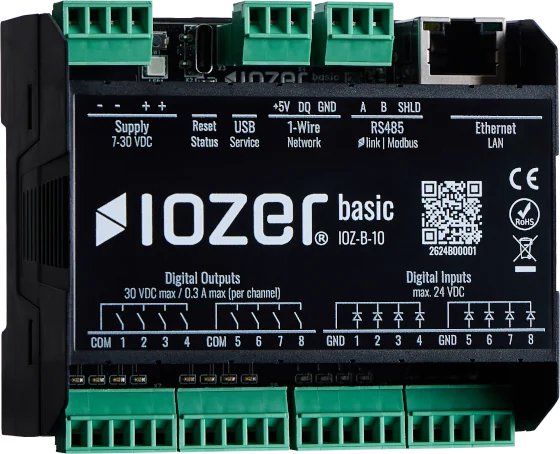
Push button with two functions
Scenario
A push button is connected to digital input 1 of an IOZER basic. The same button independently toggles two lights connected to digital outputs 1 and 2.
This example shows two alternative approaches: evaluating the click count using the button function, or evaluating the press duration when the button is released.
Goal
| Variant | Operation | Action |
|---|---|---|
| Button function | Single click | Toggle light 1 |
| Button function | Double click | Toggle light 2 |
| Press duration | Short press, less than 500 ms |
Toggle light 1 |
| Press duration | Long press, at least 500 ms |
Toggle light 2 |
Toggling turns an output on if it is off, and off if it is on. The other light keeps its current state.
Hardware used
- IOZER basic (IOZ-B-10) with a suitable power supply
- Normally open push button connected to digital input 1
- Two lights suitable for the outputs, connected to digital outputs 1 and 2
- Computer with access to the web interface
Requirements
- IOZER basic and the connected components are installed according to the safety information and electrical connection instructions.
- The input is logically
0when the button is released and1while it is pressed. - For the press duration variant, the installed firmware provides
previous_duration_msin the event context.
Steps 1 and 2 prepare the input, outputs, and datapoints. Then choose either step 3.1 or step 3.2. When switching variants, change the input datapoint accordingly and disable or remove the event for the previous variant.
Implementation
1. Configure the input and datapoint
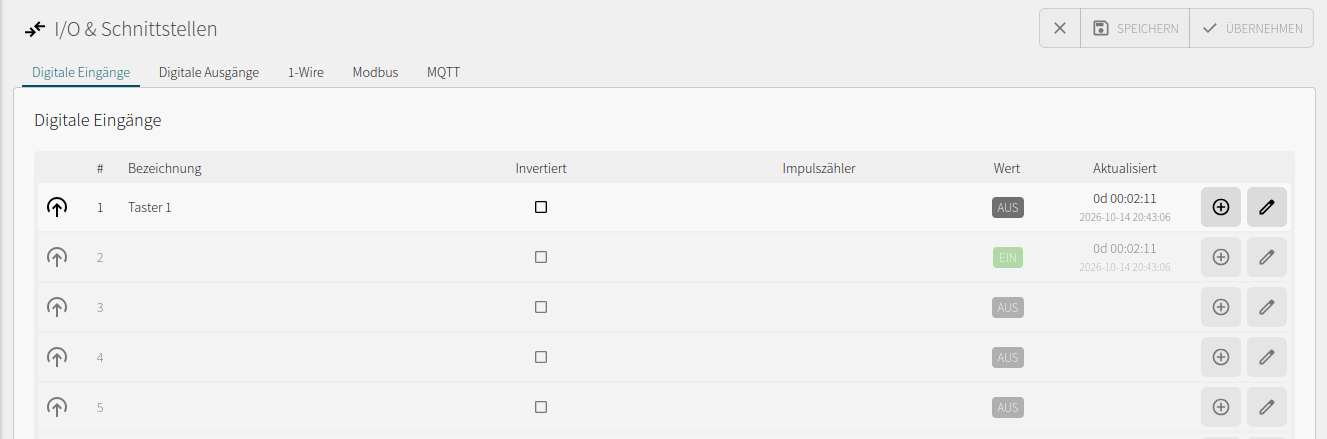
Open I/O & Interfaces → Digital inputs and edit input 1 using the pencil icon.
| Setting | Value |
|---|---|
| Label | Taster 1 |
| Enabled | On |
| Name | taster_1 |
| Inverted | Off |
| Filter time (debounce time) | 50 ms |
| Pause time (for button function) | 500 ms |
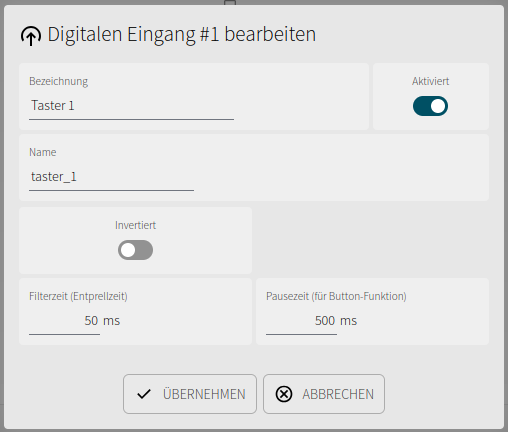
The filter time suppresses brief signal changes caused by contact bounce. The pause time determines the window for grouping multiple clicks into one button evaluation. It is independent of the threshold used later in the logic to distinguish short and long presses.
Confirm the dialog with Apply, save the configuration, and apply it to the running device.
Then create an input datapoint under Datapoints. Alternatively, use the plus icon in the input row.
| Setting | Variant 3.1: Click count | Variant 3.2: Press duration |
|---|---|---|
| Label | Taster 1 |
Taster 1 |
| Name | taster_1 |
taster_1 |
| Data type | Integer |
Boolean (Bool) |
| Data source → Binding | Digital input |
Digital input |
| Data source → Digital input | Taster 1 |
Taster 1 |
| Data source → Value | Button click count (Button-Klickzahl) |
State (Zustand) |
| Data target | None | None |
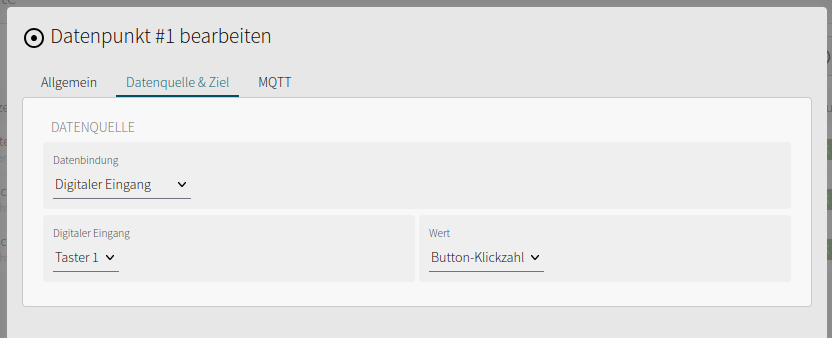
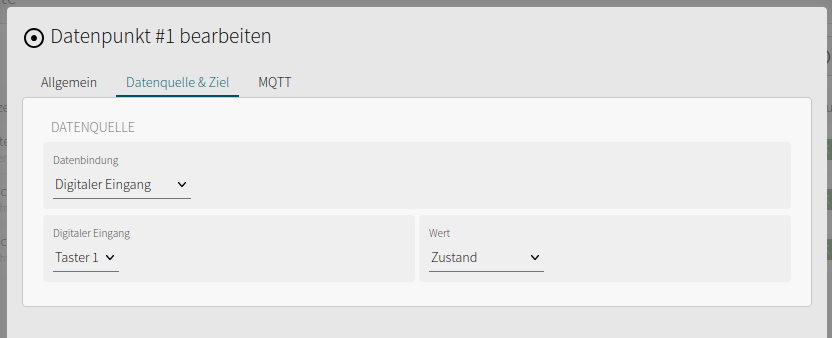
Configure the binding in the Data source & target tab. The click count requires an integer datapoint to distinguish the values 1 and 2. The press duration variant uses the Boolean input state.
The labels and technical names in this example match the German screenshots. Keep the technical names shown here when using the JavaScript examples.
Save and apply the datapoint configuration. Further information is available under Digital inputs and Datapoints.
2. Configure the outputs and datapoints
Navigate to I/O & Interfaces → Digital outputs and edit outputs 1 and 2.
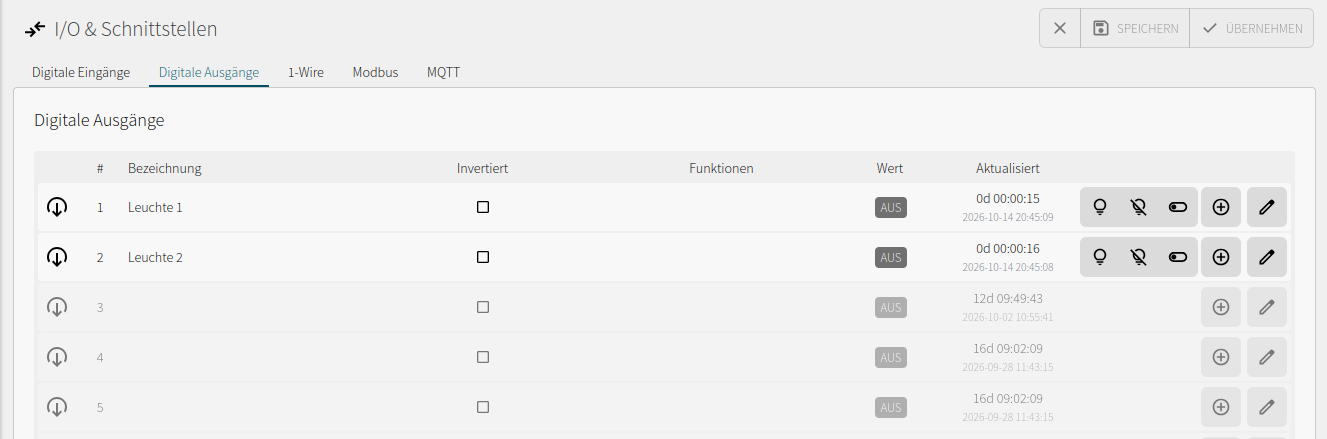
| Setting | Output 1 | Output 2 |
|---|---|---|
| Label | Leuchte 1 |
Leuchte 2 |
| Enabled | On | On |
| Name | leuchte_1 |
leuchte_2 |
| Inverted | Off | Off |
| Initial state | Off | Off |
| Auto-off | Disabled | Disabled |
| Flashing | Disabled | Disabled |
Save and apply the output configuration. Then create a datapoint for each output, either under Datapoints or using the plus icon in the corresponding output row.
| Setting | Light 1 datapoint | Light 2 datapoint |
|---|---|---|
| Label | Leuchte 1 |
Leuchte 2 |
| Name | leuchte_1 |
leuchte_2 |
| Data type | Boolean (Bool) |
Boolean (Bool) |
| Data source → Binding | Digital output |
Digital output |
| Data source → Digital output | Leuchte 1 |
Leuchte 2 |
| Data source → Value | State |
State |
| Data target → Binding | Digital output |
Digital output |
| Data target → Digital output | Leuchte 1 |
Leuchte 2 |
| Data target → Value | State |
State |
The data source reads back the current output state; the data target forwards the value set by the logic to the output. dp.toggle then operates on the corresponding datapoint.
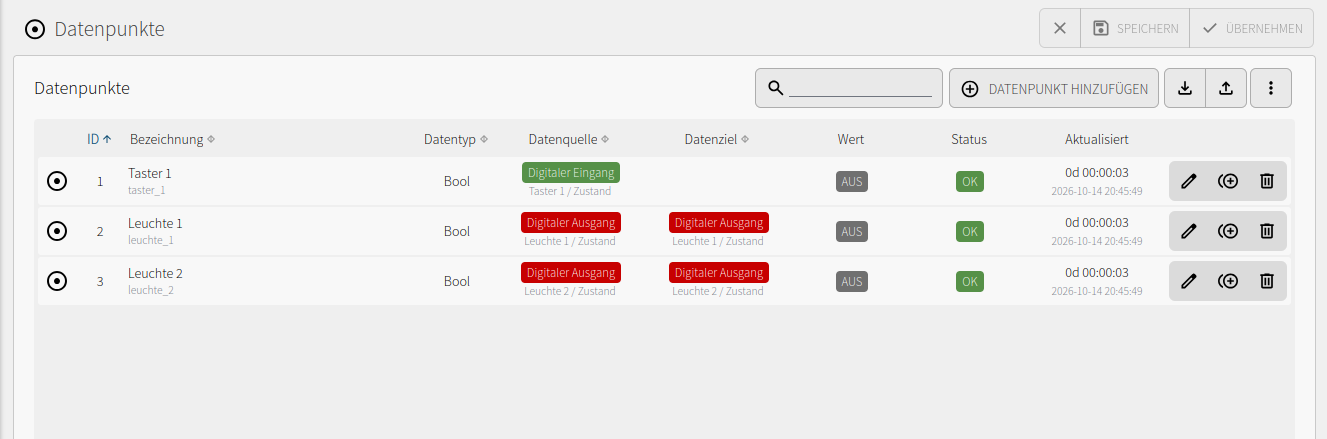
Save and apply the datapoints. In the overview, check that all three datapoints have status OK and that the output datapoints show Off. Datapoint IDs are assigned automatically and may differ from those in the screenshots. The JavaScript examples therefore use technical names.
The following overview shows the input datapoint for variant 3.2 with source value State and data type Bool. For variant 3.1, change it to Button click count and Integer as described in step 1.
For output configuration details, see Digital outputs.
3.1 Create the button function event
For this variant, configure taster_1 as an Integer with the source value Button click count.
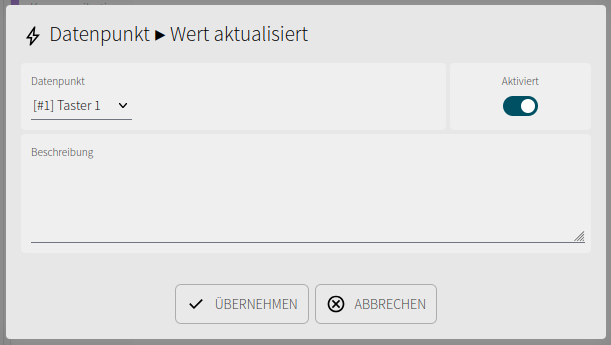
Open Program → Add event and select Datapoint → Value updated. Add the event and configure it:
| Setting | Value |
|---|---|
| Datapoint | Taster 1 |
| Enabled | On |
| Description | For example, Single click: light 1; double click: light 2 |
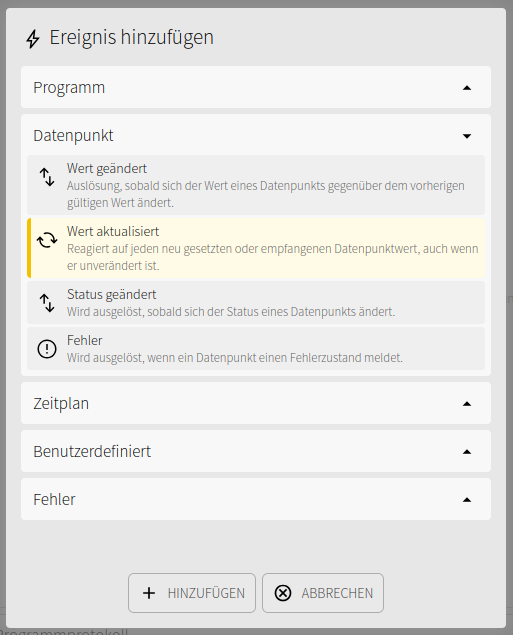
Value updated is essential here: two successive single clicks both produce the value 1. A Value changed event would not respond when the same click count occurs again.
Blockly logic
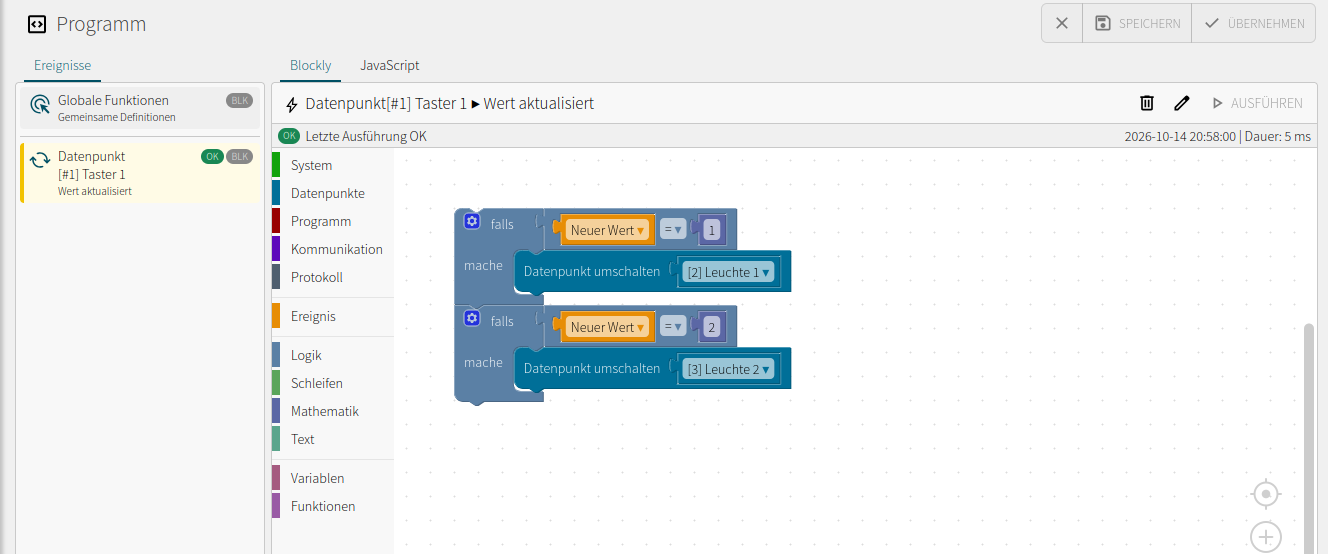
Create two consecutive if blocks from the Logic category:
- Compare Event → New value with the number
1. In the do section, add Datapoints → Toggle datapoint and selectLeuchte 1. - In the second block, compare New value with the number
2. ToggleLeuchte 2in its do section.
Other click counts do not cause an action in this example.
Alternative: JavaScript
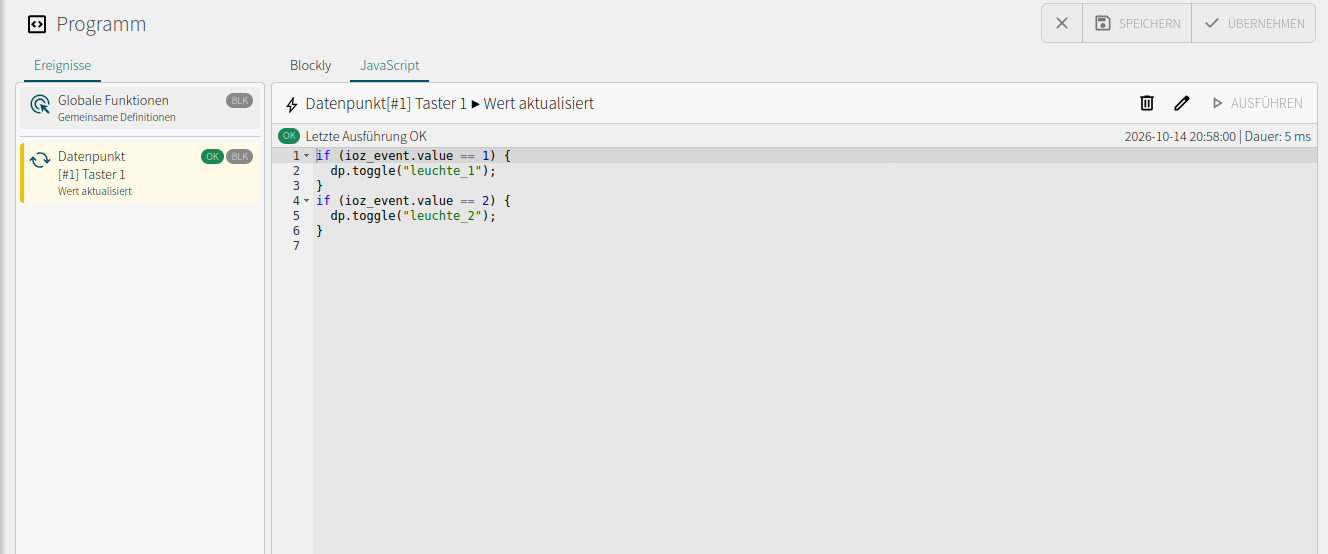
The same logic can be entered in the event's JavaScript editor:
if (ioz_event.value == 1) {
  dp.toggle("leuchte_1");
}
if (ioz_event.value == 2) {
  dp.toggle("leuchte_2");
}
Use either Blockly or the JavaScript alternative for each event. Save the program and apply it to the running device.
Verify operation
- Briefly press and release the button once. Wait for the configured click pause to expire: light 1 must toggle.
- Repeat the single click after the evaluation has completed. Light 1 must toggle again, even though the click count is still
1. - Briefly press the button twice within the configured click pause. When the click sequence is complete, light 2 must toggle once; light 1 keeps its state.
- Check the states in the datapoint overview and the event execution status in the program view.
3.2 Create the falling edge event
For this variant, configure taster_1 as a Boolean with the source value State. First disable or remove the event from step 3.1 if it has already been created.
Open Program → Add event and select Datapoint → Value changed. Configure the event:
| Setting | Value |
|---|---|
| Datapoint | Taster 1 |
| Enabled | On |
| Description | For example, On release: short press light 1, long press light 2 |
The event responds to state changes when the button is pressed and released. The condition New value = 0 selects the falling edge on release. The press duration is evaluated at that point. A long press also toggles its light only when the button is released.
Blockly logic
- Create an if block with the condition Event → New value = 0.
- Inside its do section, insert another if block with an else branch.
- Compare Event → Duration of previous value with
< 500. - Toggle
Leuchte 1in the inner do section andLeuchte 2in the else section.
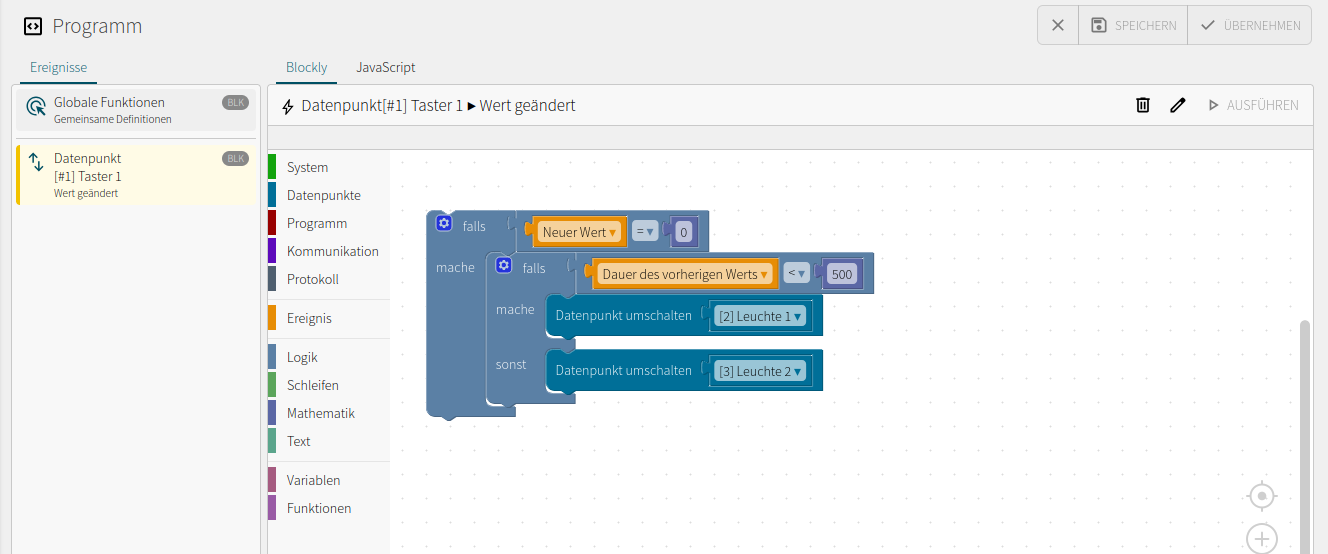
The duration of the previous value is supplied in milliseconds. On the falling edge, the previous value is the pressed state of the button. A duration of exactly 500 ms already counts as a long press.
Alternative: JavaScript
if (ioz_event.value == 0) {
  if (ioz_event.previous_duration_ms < 500) {
    dp.toggle("leuchte_1");
  } else {
    dp.toggle("leuchte_2");
  }
}
ioz_event.previous_duration_ms corresponds to the Blockly block Duration of previous value (Dauer des vorherigen Werts). The comparison ioz_event.value == 0 recognizes both Boolean false and numeric 0 as the released state.
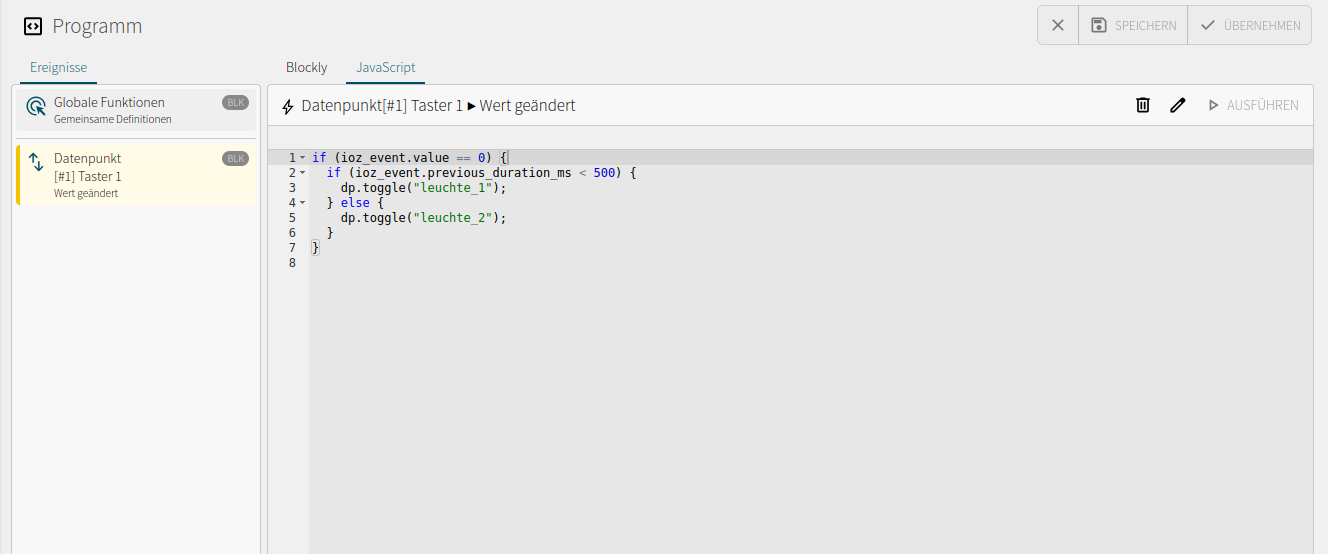
Use either Blockly or the JavaScript alternative. Save and apply the program.
Verify operation
- Press the button for clearly less than
500 ms, for example about200 ms, and release it. Light 1 must toggle once. - Hold the button for clearly longer than
500 ms, for example about one second. No light should toggle while the button is held. On release, light 2 must toggle once. - Repeat both operations. The assigned light must toggle again on each release; the other light keeps its state.
- Check the states in the datapoint overview and the event execution status.
Troubleshooting
| Symptom | Possible cause and check |
|---|---|
| Input does not respond | Check activation, wiring, and the logical input value under Digital inputs. |
| Double click toggles the wrong light | For variant 3.1, check data type Integer and source value Button click count. A Boolean datapoint cannot distinguish click counts 1 and 2. |
| Another single click has no effect | Use the Value updated trigger in variant 3.1. |
| Two clicks are detected as separate single clicks | Check the interval between clicks and the configured pause time of 500 ms. |
| Light toggles on press instead of release | For variant 3.2, check the logical input state, inversion, and the New value = 0 condition. |
| Short and long presses are not distinguished correctly | Check source value State, trigger Value changed, and the comparison of previous_duration_ms with 500. The unit is milliseconds. |
| Light toggles unexpectedly or twice | Enable only the event for the selected variant; check other logic and the output auto-off and flashing functions. |
| Datapoint changes but the output does not | Check the data target and its assignment to the correct digital output. |
Result and extension
A single push button controls two outputs independently. The button function distinguishes the number of clicks; the second variant distinguishes the duration of the pressed state when the button is released.
To add more functions, extend the click evaluation with additional click counts. Adjust the threshold for a long press by changing the comparison value in Blockly or JavaScript. The pause time for the button function remains a separate input setting.